How to Take a Screenshot on Windows: 6 Ways
Updated on November 17, 2026 · 5 min read
The short answer
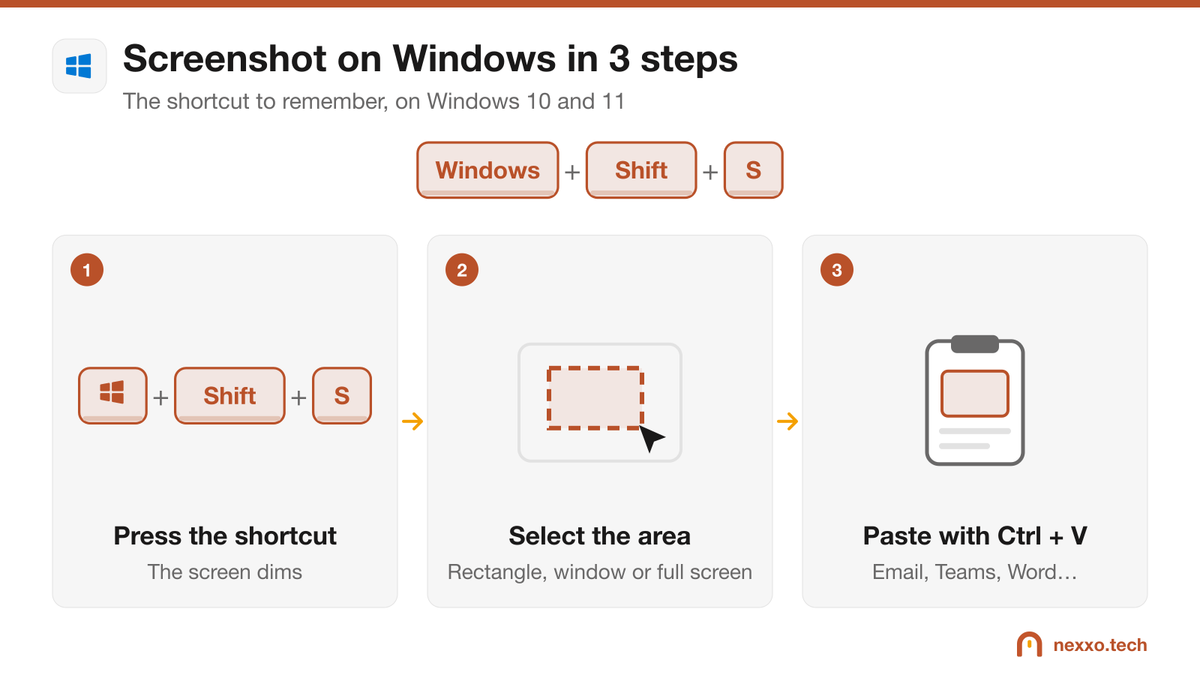
Press Windows + Shift + S, select the area you want, then paste the image with Ctrl + V into an email, Teams or Word. To capture the whole screen and save it straight away, press Windows + Print Screen: the image goes to Pictures > Screenshots.
Taking a screenshot is one of the most useful things you can do at work: show an error message to IT support, keep a record of a confirmation, or illustrate a procedure for a colleague. Windows offers six ways to do it, on Windows 10 and Windows 11 alike. Here is when to use each one, and where to find your images afterwards.
Method 1: Windows + Shift + S (the most convenient)
This is the shortcut to remember. It opens the Snipping Tool without leaving what you are doing.
- Press Windows + Shift + S together. The screen dims and a small toolbar appears at the top.
- Pick a mode: Rectangle, Window, Full screen or Freeform.
- Select the area to capture with your mouse.
- Paste the image wherever you want with Ctrl + V: an Outlook email, a Teams chat, a Word document.
A notification appears in the bottom-right corner: click it to mark up the image (highlight, write, crop) before you send it. On Windows 11, the capture is also saved automatically in Pictures > Screenshots.
Method 2: the Print Screen key
On Windows 11, the Print Screen key (sometimes labelled PrtScn or PrtSc) now opens the Snipping Tool, just like Windows + Shift + S. On Windows 10, it copies the whole screen to the clipboard: then simply paste the image with Ctrl + V.
Prefer the old behaviour? In Settings > Accessibility > Keyboard, turn off the option that uses the Print Screen key to open screen capture.
Method 3: Windows + Print Screen (save the whole screen)
Press Windows + Print Screen. The screen flashes briefly and an image of the whole screen is saved straight to Pictures > Screenshots, with nothing to paste. It is the best method when you need several screenshots in a row.
Method 4: Alt + Print Screen (the active window)
Click in the window you want, then press Alt + Print Screen. Only that window is copied, without the taskbar or other windows. Then paste it with Ctrl + V.
Method 5: a delayed screenshot (menus and tooltips)
Some things disappear as soon as you press a key, such as a drop-down menu. In that case, open the Snipping Tool from the Start menu, choose a 3, 5 or 10-second delay, click New, then open your menu during the countdown.
Method 6: record a video of your screen
To show a series of steps rather than a single image, a short video is clearer. On Windows 11, the Snipping Tool has a Record button: choose the area, then click Start. In an app or a game, Windows + Alt + R also starts a recording with the Xbox Game Bar; the video goes to Videos > Captures.
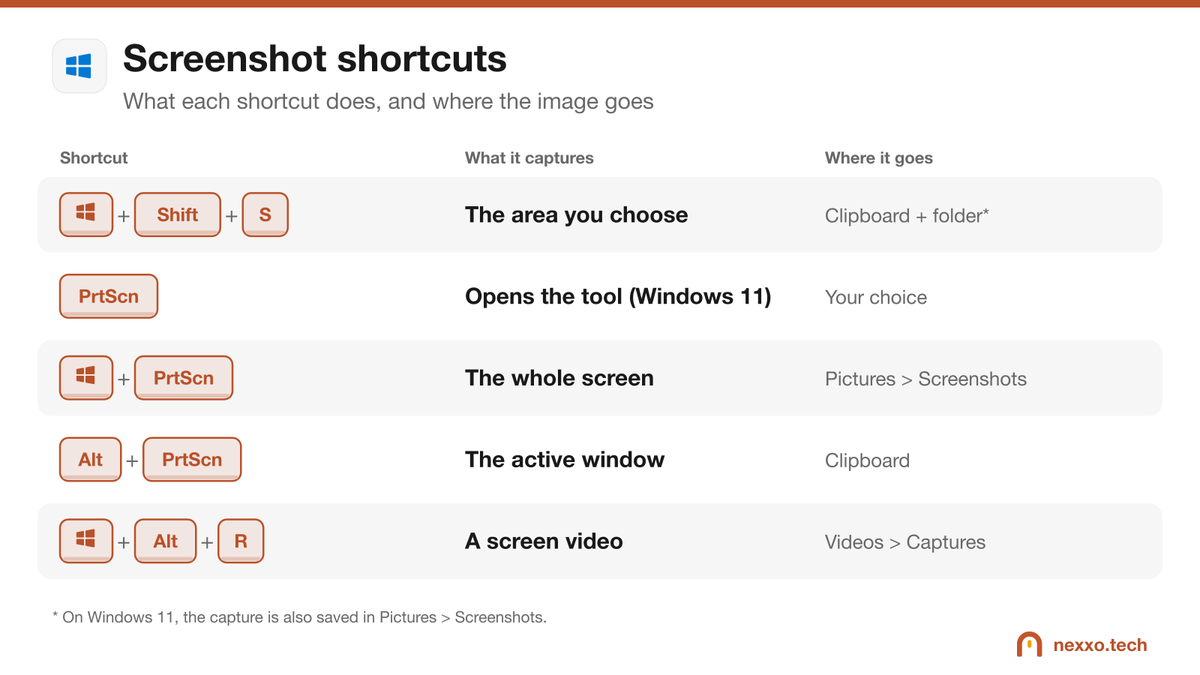
Where are your screenshots?
- Pictures > Screenshots: Windows + Print Screen, and Snipping Tool captures on Windows 11.
- Clipboard: Windows + Shift + S, Alt + Print Screen, and Print Screen on Windows 10. Press Windows + V to see your clipboard history, if it is turned on.
- Videos > Captures: recordings made with the Xbox Game Bar.
- OneDrive: if the option is on, OneDrive can save your screenshots in its own Screenshots folder.
Screenshot not working?
- On a laptop, the Print Screen key often shares its spot with another function: hold Fn as well.
- Nothing happens with Windows + Shift + S: check that the Snipping Tool is installed (search for it in the Start menu) and restart the computer.
- Another app took over the key: OneDrive, Dropbox or a screenshot program can intercept Print Screen. Turn the option off in their settings.
- On a work computer, some applications (banking, medical) deliberately block screenshots. Your IT team can tell you if that is the case.
What about Mac?
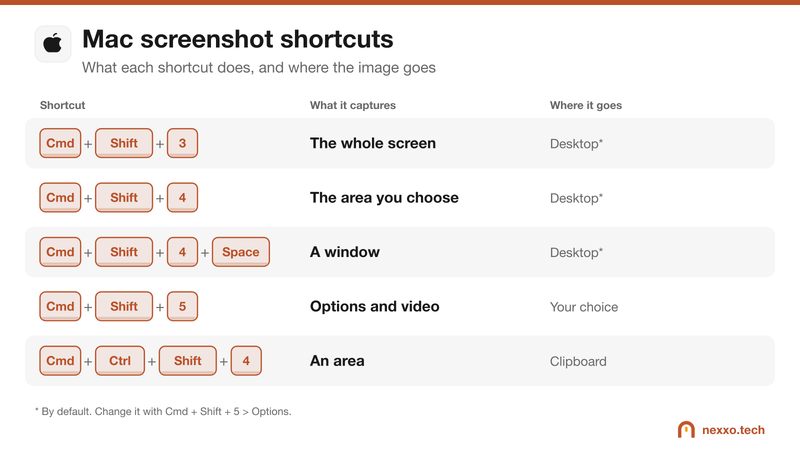
On a Mac, the shortcuts are Cmd + Shift + 4 for an area, Cmd + Shift + 3 for the whole screen and Cmd + Shift + 5 for options and video. Switching from Mac to Windows? Our complete guide to switching from Mac to Windows lists every equivalent.
All the details in our tip: how to take a screenshot on a Mac.
A good habit before sending a screenshot
A screenshot often shows more than you meant to: a client's name, an email address, a file number. Before sending it outside the company, crop the image or hide that information with the markup tool. In Quebec, Law 25 governs how personal information is shared, and a screenshot sent too quickly can turn into a confidentiality incident.
Frequently asked questions
Where are screenshots saved on Windows?
With Windows + Print Screen, in Pictures > Screenshots. With Windows + Shift + S, the image is copied to the clipboard; on Windows 11 it is also saved in Pictures > Screenshots. Videos recorded with Windows + Alt + R go to Videos > Captures.
How do I screenshot just one window?
Click in the window, then press Alt + Print Screen. The image is copied to the clipboard: paste it with Ctrl + V. You can also use Windows + Shift + S and pick the Window mode.
Why doesn't my Print Screen key work?
On many laptops you need to hold the Fn key at the same time. Also check that another program, such as OneDrive or a screenshot tool installed by your company, has not taken over the key.
How do I take a screenshot on a laptop without a Print Screen key?
Use Windows + Shift + S, which works on every keyboard, or open the Snipping Tool from the Start menu.