Microsoft Forms: Create a Form or Survey in 5 Minutes
Updated on November 17, 2026 · 6 min read
The short answer
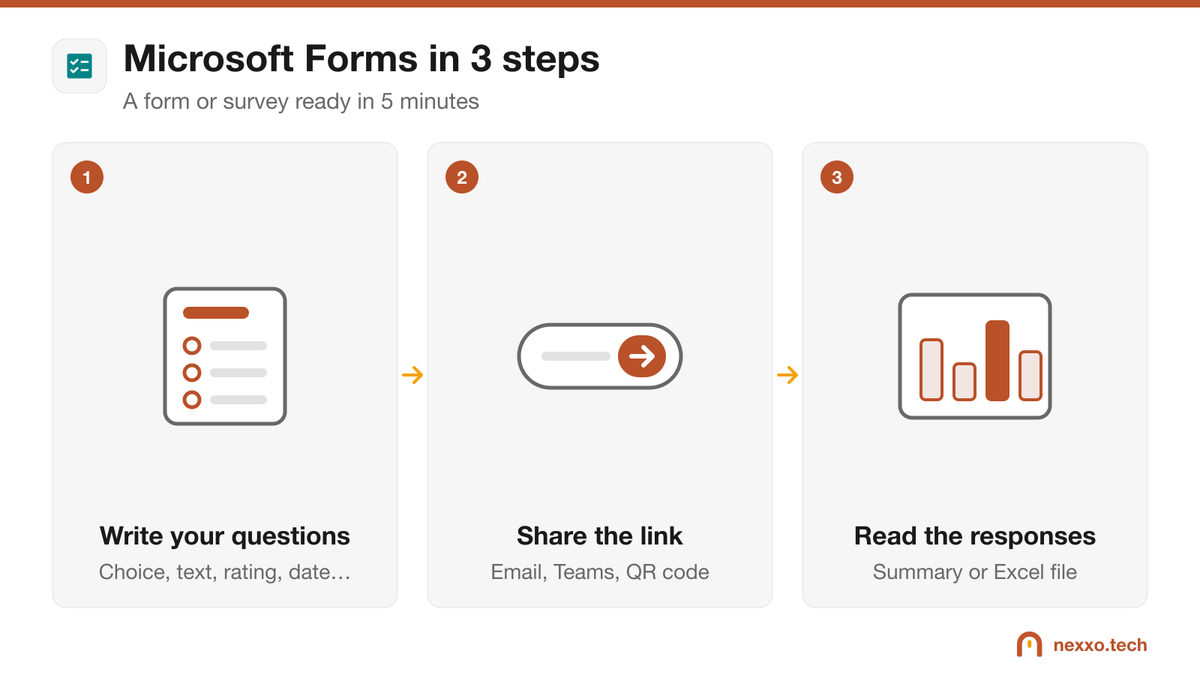
Go to forms.office.com with your Microsoft 365 account, click New Form, add your questions, then click Collect responses to share the link. Responses arrive live in the Responses tab and open in Excel in one click.
A satisfaction survey, a training sign-up, a time-off request, a team quiz: Microsoft Forms handles all of that in a few minutes, with no software to buy. It is included in Microsoft 365 and the responses go straight into Excel. Here is how to use it from start to finish.
1. Create a form
- Go to forms.office.com, or open the Microsoft 365 app launcher (the nine dots at the top left) and pick Forms.
- Sign in with your work account.
- Click New Form, or New Quiz if you want a graded quiz with correct answers.
- Give it a clear title and a short description: what the form is for and how long it takes.
Need inspiration? Forms also offers ready-made templates, and you can duplicate an existing form.
2. Pick the right question types
- Choice: one or more answers from a list. The easiest to analyse.
- Text: a free answer, short or long.
- Rating: stars or numbers, ideal for satisfaction.
- Date: for a sign-up or an availability request.
- Ranking and Likert: to compare options or measure agreement.
- File upload: the respondent attaches a document (for respondents in your organization only).
Turn on Required for the essential questions. For a long form, add sections, and use branching (a question's … menu, then Add branching) to send each respondent to the questions that apply to them.
3. Adjust the settings
Open Settings (the … menu at the top right) before sharing:
- Who can respond: only people in your organization, or anyone with the link.
- Record name and one response per person, for an internal form.
- Start and end date, to close the form automatically.
- Get an email notification for each response.
Then click Preview to see the form as a respondent would, on a computer and on a phone.
4. Share the form
Click Collect responses (or Share, depending on your version). You can copy the link, send it by email, generate a QR code for a poster or an event, or get a code to embed it in a web page. In Teams, you can also add the form as a channel tab.
To work on the same form with colleagues, use Share to collaborate instead: they will be able to edit the questions and see the results.
5. Read and analyse the responses
The Responses tab shows a live summary: charts for choice questions, an average for ratings, a list of text answers. Click Open in Excel to get a file with one row per respondent, ready to sort, filter or put in a PivotTable.
Forms and Quebec's Law 25: four good habits
As soon as a form collects names, email addresses or other personal information, Law 25 applies.
- Only ask what you need: every question should serve the purpose of the form.
- Say why: explain in the description what the answers will be used for and who will see them.
- Limit access: share the results only with the people who need them.
- Clean up: delete responses once they are no longer needed.
Our Law 25 compliance guide for businesses explains these obligations in detail.
Frequently asked questions
Is Microsoft Forms free?
Yes. Forms is included in Microsoft 365 business plans, and a basic version is free with a personal Microsoft account.
Can people outside my company answer my form?
Yes, if you choose "Anyone can respond" in the settings. By default, only people in your organization can respond, which is safer for an internal survey.
How do I see the responses in Excel?
In the Responses tab, click Open in Excel (or View results in Excel, depending on your version). You get a file with one row per response, ready to sort and filter.
Can a survey be anonymous?
Yes, for an internal form: turn off "Record name" in the settings. Responses will then not be linked to people's names.