How to Recall (Unsend) an Email in Outlook
Updated on November 17, 2026 · 5 min read
The short answer
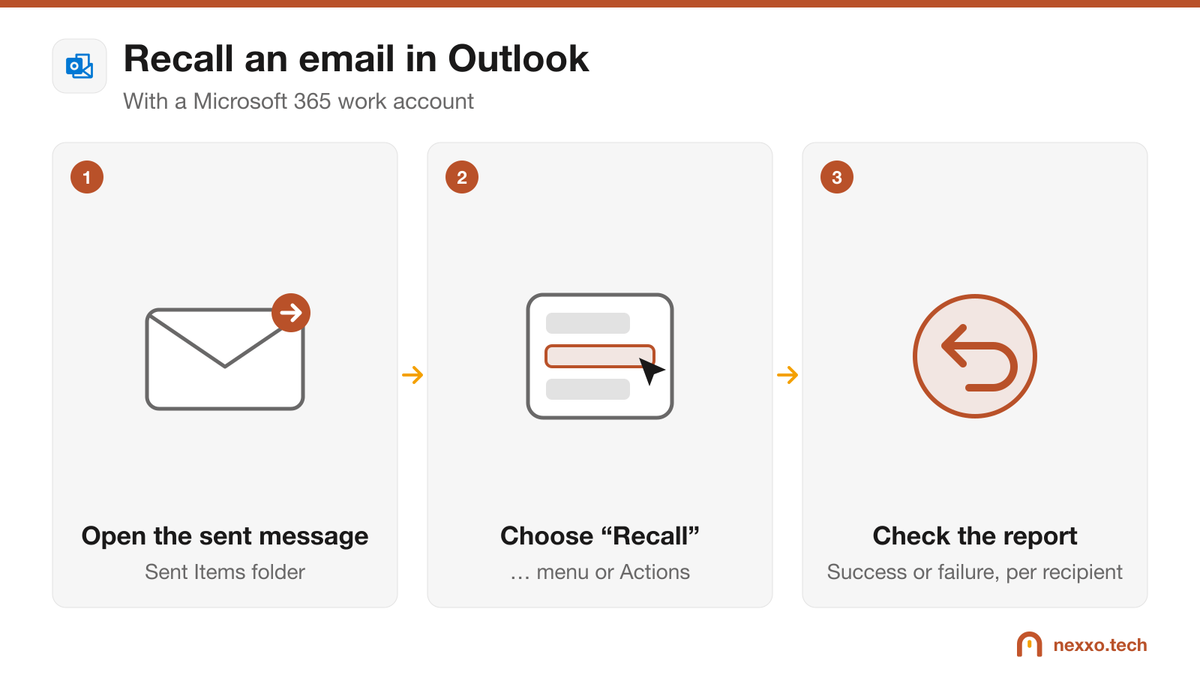
Open the message in Sent Items, then choose Recall This Message (the … menu in new Outlook, or Actions in classic Outlook). Recall only works with a Microsoft 365 work account and for recipients in your organization; you then get a report for each one.
Wrong recipient, forgotten attachment, too blunt a tone: everyone has wanted an email back a second after clicking Send. Outlook lets you recall a message, but only under certain conditions. Here is how to do it, when it works, and how to avoid needing it.
Before you start: when recall works
- You use a Microsoft 365 work account (Exchange), not an Outlook.com or Gmail account.
- The recipient is in your organization. A message sent outside the company cannot be recalled.
- The message has often not been read yet: depending on your organization's settings, recalling a message that was already opened may fail.
In new Outlook and Outlook on the web
- Open the Sent Items folder.
- Double-click the message to open it.
- Click the … menu (More actions), then Recall message.
- Confirm with OK.
In classic Outlook (Windows)
- Open the message in Sent Items by double-clicking it.
- On the Message tab, click Actions (or the … menu), then Recall This Message.
- Choose to delete unread copies. Depending on your version, an option also lets you replace them with a new message.
Check the result
A few moments later, Outlook sends you a recall report showing, for each recipient, whether the recall succeeded or failed. If it failed, send a short correction right away.
Better than recall: Undo Send
The safest option is to give yourself a few seconds to change your mind:
- New Outlook and Outlook on the web: Settings > Mail > Compose and reply > Undo send. Set the delay up to 10 seconds. An Undo button appears after each send.
- Classic Outlook: create a rule that defers delivery of your messages by 1 or 2 minutes (File > Manage Rules & Alerts > New Rule > Apply rule on messages I send). Your emails wait in the Outbox during that time.
- For one important message: Options > Delay Delivery, and pick the send time.
Email sent to the wrong person: think of Law 25
If the message contained personal information (a client file, employee data) and went to the wrong person, it is a confidentiality incident under Quebec's Law 25, even if the recall succeeded. It must be recorded in the company's incident register. Our Law 25 compliance guide explains what to do.
Frequently asked questions
Can I recall an email sent to a Gmail or outside address?
No. Recall only works for recipients in your own Microsoft 365 organization. For an outside recipient, quickly send a correction.
Will the recipient know I recalled a message?
Depending on the version and settings, they may see a notice that a message was recalled. It is safer to assume they will notice.
Can I recall a message that was already read?
Often not: depending on your organization's settings, recalling a message that was already opened may fail. The recall report tells you the result for each recipient.
How long do I have to undo a send?
With Undo Send in new Outlook and Outlook on the web, up to 10 seconds. In classic Outlook, a rule can delay all your sent messages by a few minutes.